Running Races#
This section is for assisting Race Directors with running their races with the MultiGP Toolkit installed on a RotorHazard system
Recommended Class Settings#
Each of the MultiGP schedules that you can use have their own set of recommended settings to help make running you race smoother.
Controlled Races#
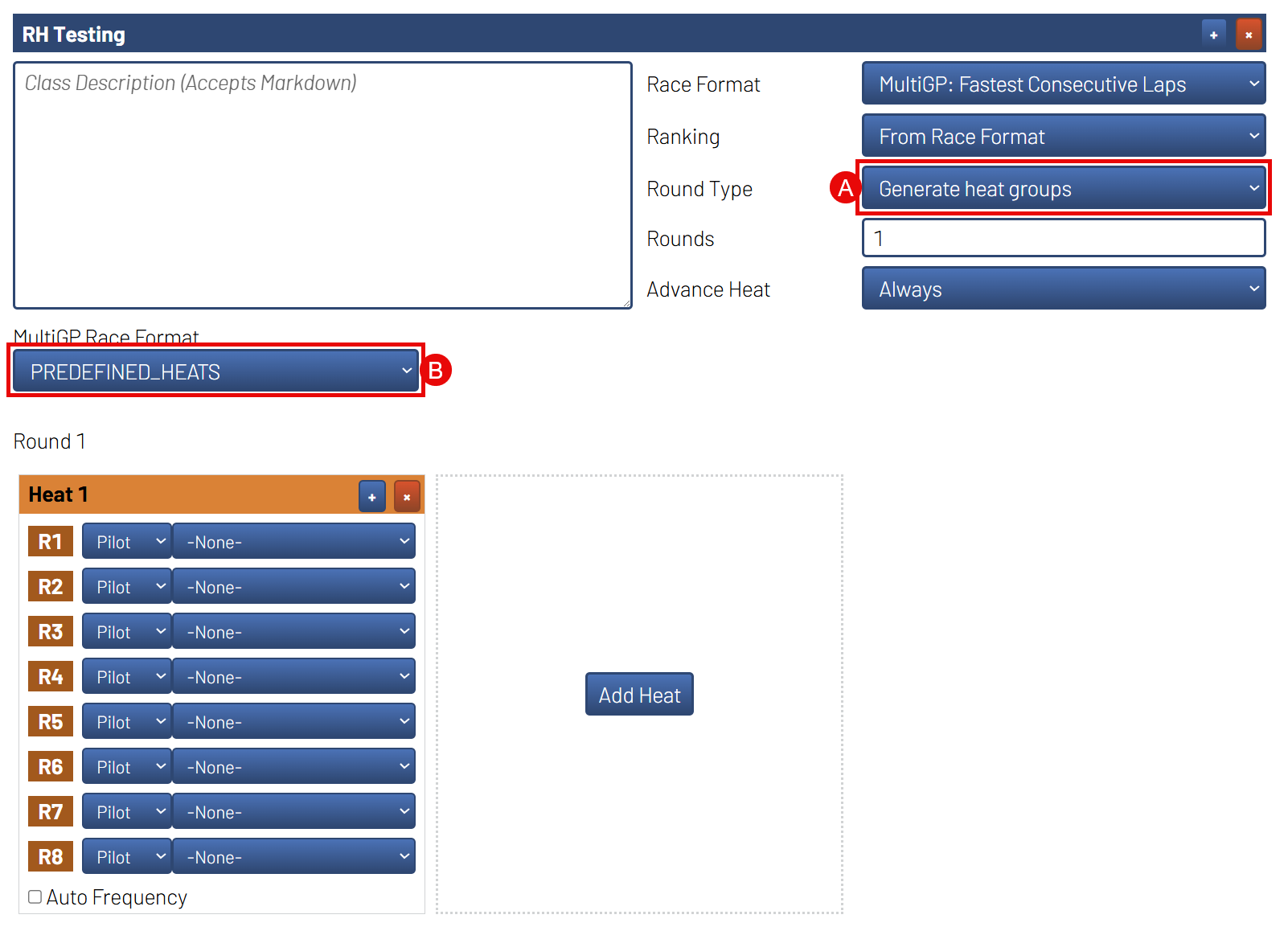
The recommended settings for running a race with predefined heats includes the following:
- Set
Round TypetoGenerate heat groups This will allow the race director to edit their
heats between rounds
- Set
- Set
MultiGP Race FormattoPREDEFINED_HEATS This activates the features of the plugin specifically designed for predefined
heats as well as tell the toolkit how to format the results when uploading to MultiGP
- Set
ZippyQ Races#
A race class with ZippyQ active will expect each heat within the class to only be raced once; the system will attempt to prevent a heat from being ran a second round. In the event a saved race needs to be re-ran, and the race was saved to the internal database, see Move Race Results.
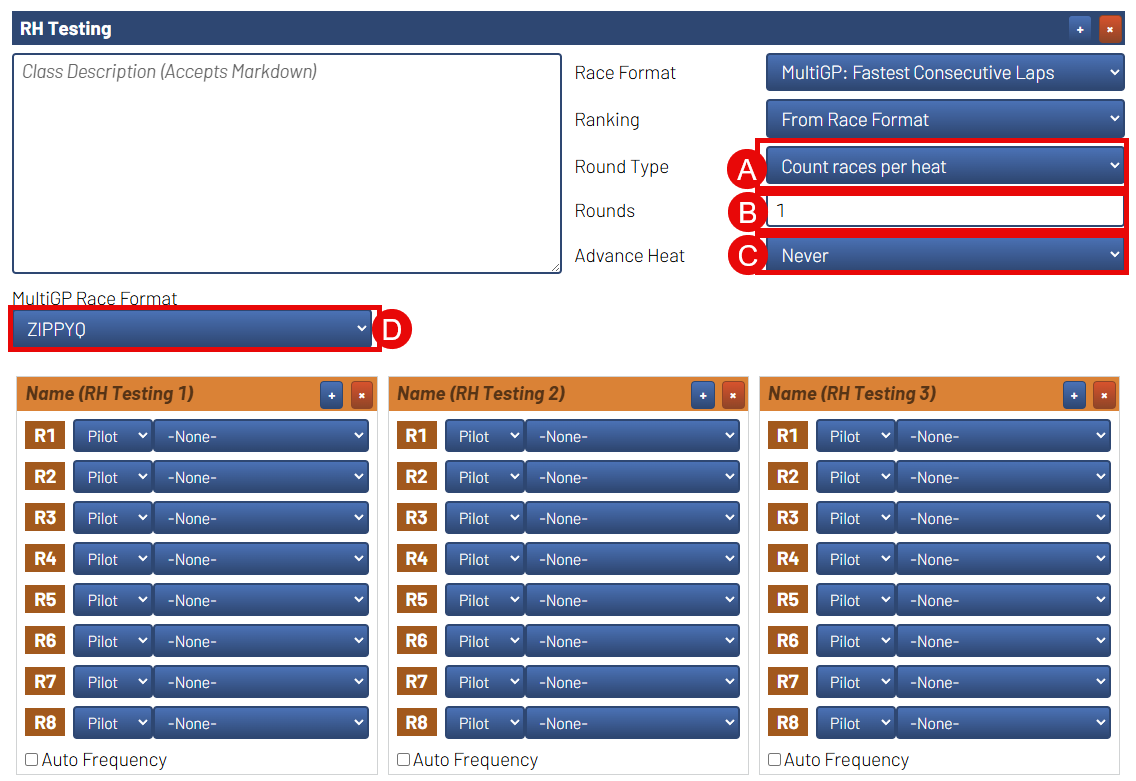
The recommended settings for running a ZippyQ race includes the following:
- Set
Round TypetoCount races per heat This will allow the system automatically create a new heat under the class
without needing to interact with indivitual rounds within the class
- Set
- Set
Roundsto1 This will prevent the system from trying to repeat a ZippyQ round
- Set
- Set
Advance HeattoNever A majority of the time, the next race is not imported by the time RotorHazard
is ready to move to the next heat. If you want to have the system automatically import the next round and switch to it once imported, see the hints under Import ZippyQ Rounds.
- Set
- Set
MultiGP Race FormattoZIPPYQ This activates the features of the plugin specifically designed for ZippyQ
as well as tell the toolkit how to format the results when uploading to MultiGP
- Set
Bracketed Races#
A race class with Bracketed Race active will expect each heat within the class to only be raced once; the system will attempt to prevent a heat from being ran a second round. In the event a saved race needs to be re-ran, and the race was saved to the internal database, see Move Race Results.
- Set
Round TypetoCount races per heat This will allow the system automatically create a new heat under the class
without needing to interact with indivitual rounds within the class
- Set
- Set
Roundsto1 This will prevent the system from trying to repeat a ZippyQ round
- Set
- Set
MultiGP Race FormattoBRACKET This activates the features of the plugin specifically designed for bracketed
results when uploading to MultiGP
- Set
- Optional: Set
RankingtoLast Heat Position The will rank all the pilots in the class based on the position of the last
heat they raced in. Pilots in later heats will be ranked higher. This works well for the bracket generators built into RotorHazard, but may not have the desired result in all types of brackets. - Some stream overlays are not compatible with setting
Rankingto the non-default value.
- Optional: Set
Note
If a heat needs to be re-ran multiple times due to the rule of a race format
(like MultiGP’s chace-the-ace), it is advised to duplicate the heat
(press the + button on the heat within the race class) for each re-run
instead of attempting to use the same heat repeatedly.
Enforced Rules#
When the MultiGP Toolkit is install on a RotorHazard system there are a certain set of rules it enforces to ensure that the results generated by the system are capable of being uploaded to MultiGP reliably.
All Races#
The follow rules will be enforced by the system for any race ran with the plugin installed. This INCLUDES any races under classes and heats that were manually created.
A pilot is only allowed to occupy one slot per heat
There should be at least one pilot in the heat
ZippyQ Races#
The follow rules will be enforced by the system for a race belonging to a class that was generated by importing a ZippyQ race.
ZippyQ rounds must be ran in the order in which they were created
Completed ZippyQ rounds cannot be repeated.
Global Qualifiers#
The follow rules will be enforced by the system for a race belonging to a class that was imported as a Global Qualifier (Controlled or ZippyQ).
An approved version RotorHazard and the MultiGP Toolkit must be used for running Global Qualifiers. This includes the primary RotorHazard codebase as well as the MultiGP Toolkit’s codebase.
Note
The MultiGP Toolkit contains a system to notify the race director when a mandatory update is available for either RotorHazard or the MultiGP Toolkit
A minimum of 1 pilot must be registered in the heat for the results to be uploaded to MultiGP
The imported class from MultiGP can not be altered and must be used for the Global Qualifier event (results will not be uploaded otherwise)
The format assigned to the imported class from MultiGP cannot be altered with exception to the settings that manage the start/stop behavior of the timer
Other plugins can not be used to register laps
ReRunning Races#
In the event a race needs to be rerun, you should Stop the race and then Discard Laps. This will prevent the race results from being saved
into the internal database. Once the results are saved into the database, they can not be deleted.
Stop the Race

Discard Laps

Move Race Results#
In the event that the results were saved to the internal database and the race needs to be rerun, you will need to reassign the results to another heat to prevent the race data from being associated with your MultiGP event.
Navigate to the
FormatpageLocate the
Classes and HeatspanelAdd a new Class
Add a new Heat to the class
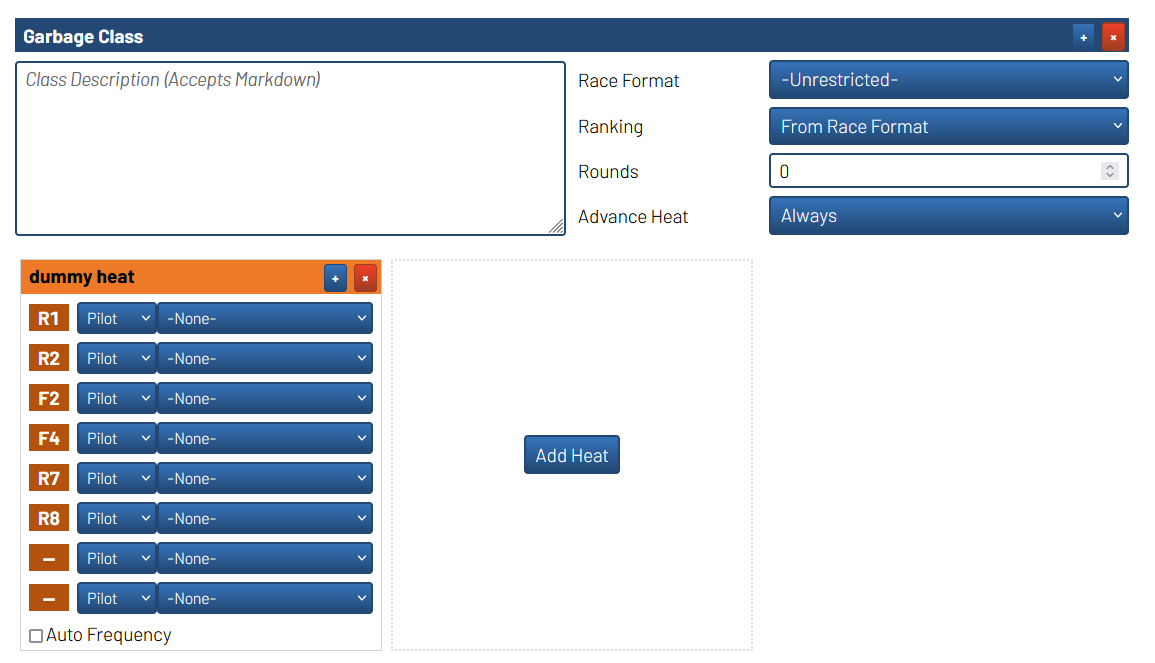
Navigate to the
MarshalpageSelect the Heat and Round you would like to reassing
Select the Heat you would like to reassign the race data to and click
Reassign Heat